Remove Person from Photo. Keep Every Other Detail.
Brush over any unwanted passerby to remove person from photo online in seconds. This remove person from photo editor rebuilds only your brushed mask with 10 free daily credits and clean PNG export.
Result
Original
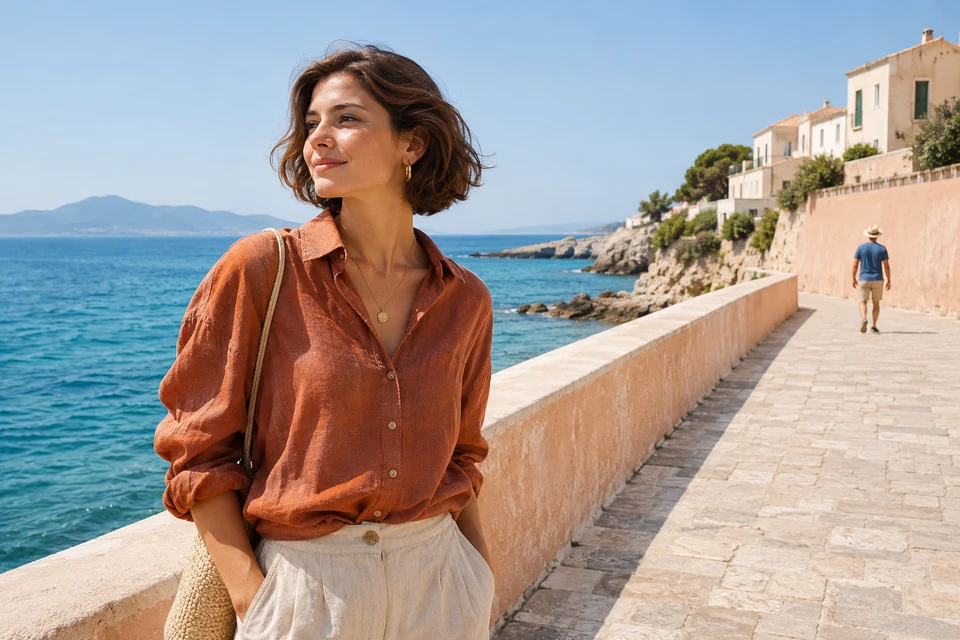
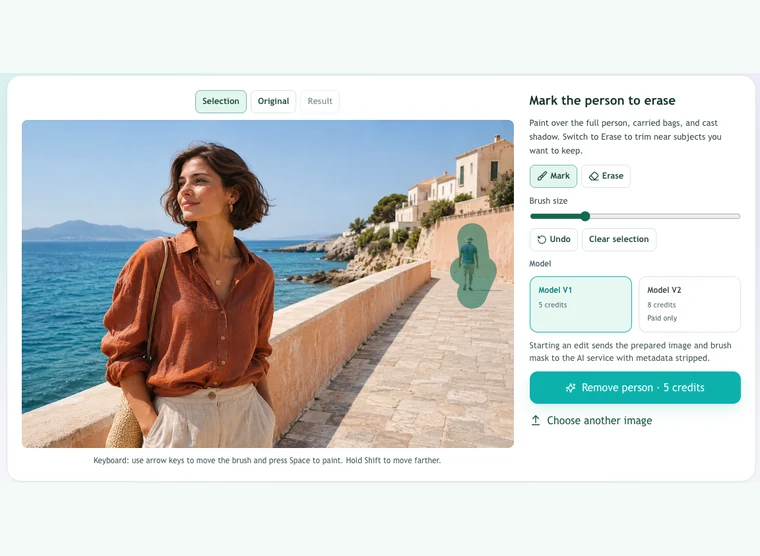
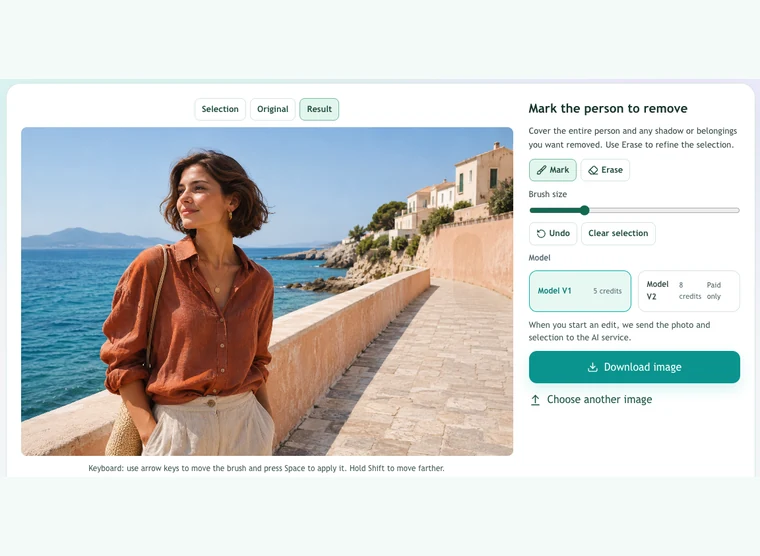
Seaside walkway — remove person from photo
Generated test scenes edited with Model V1 to remove person from photo cleanly.
Remove Person from Photo
Brush the unwanted person to remove person from photo online while unmasked pixels stay untouched.
Use this remove person from photo online editor whenever you want to remove person from photo while keeping original lighting and main subjects. Each workflow below shows how focused masking helps remove person from photo cleanly and remove person from travel shots without rebuilding the scene.
Delete people from photos on travel landmarks — keep clean scenery
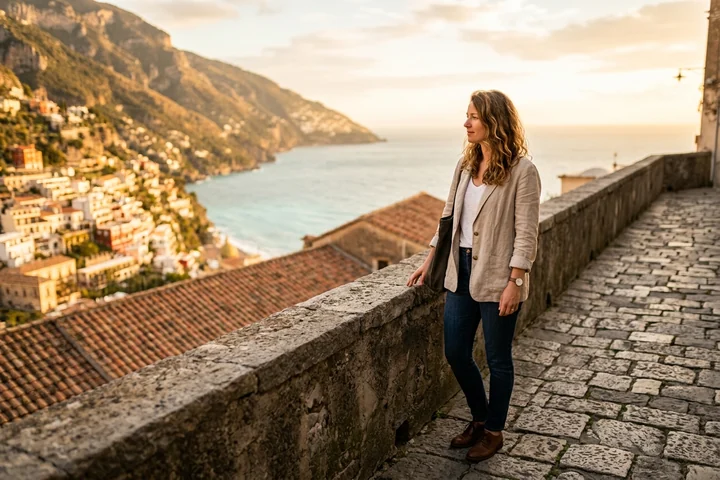
Busy viewpoints rarely stay empty. To remove person from photo along a terrace or coastal path, brush a snug mask over the distant person and ground shadow. Unmasked pixels stay locked, letting travelers remove person from photo online while stonework and railings stay crisp. Always check straight edges after each remove person from photo pass.
Edit out person in photo for solo portraits — preserve natural light
A stray diner behind a café table distracts from a portrait. To remove person from photo around seated subjects, paint only the background person and trim near hair or sleeves with Erase. This targeted remove person from photo online workflow preserves skin tones, color warmth, and courtyard framing while helping remove person from portraits accurately.
Remove someone from a photo in group shots — protect nearby faces
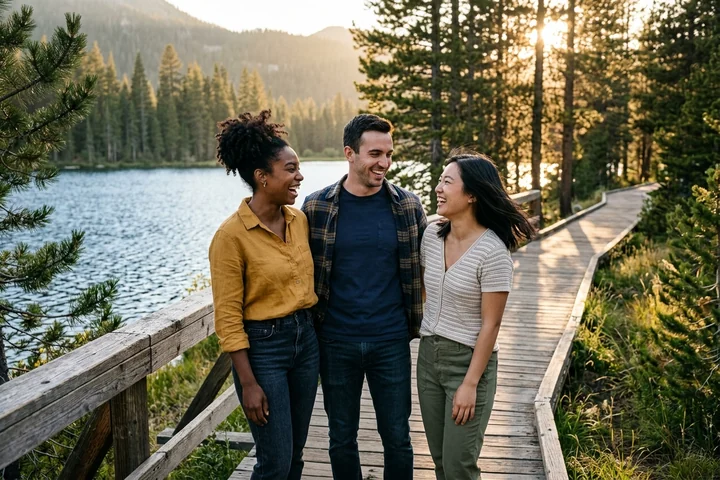
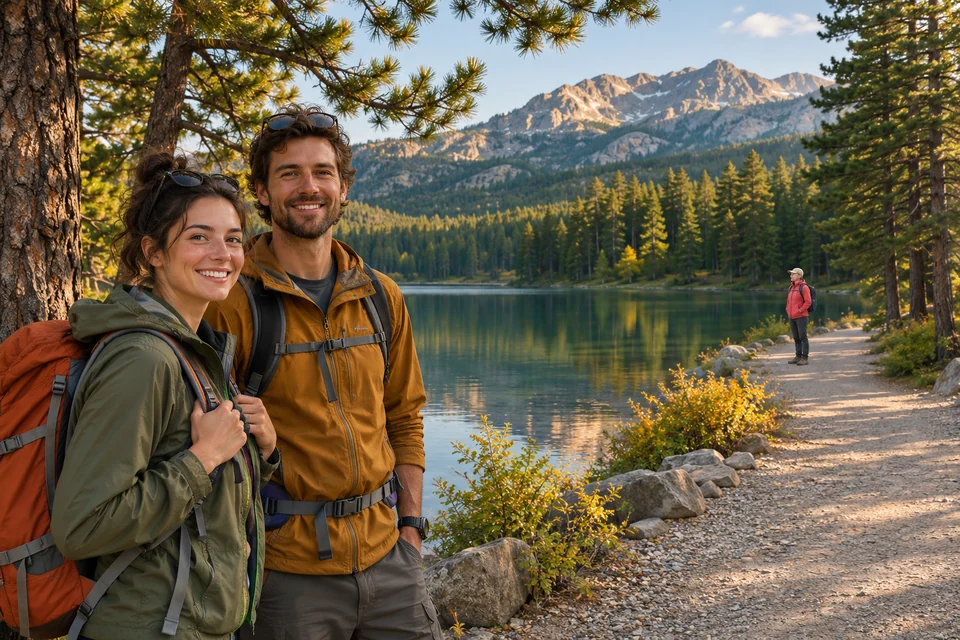
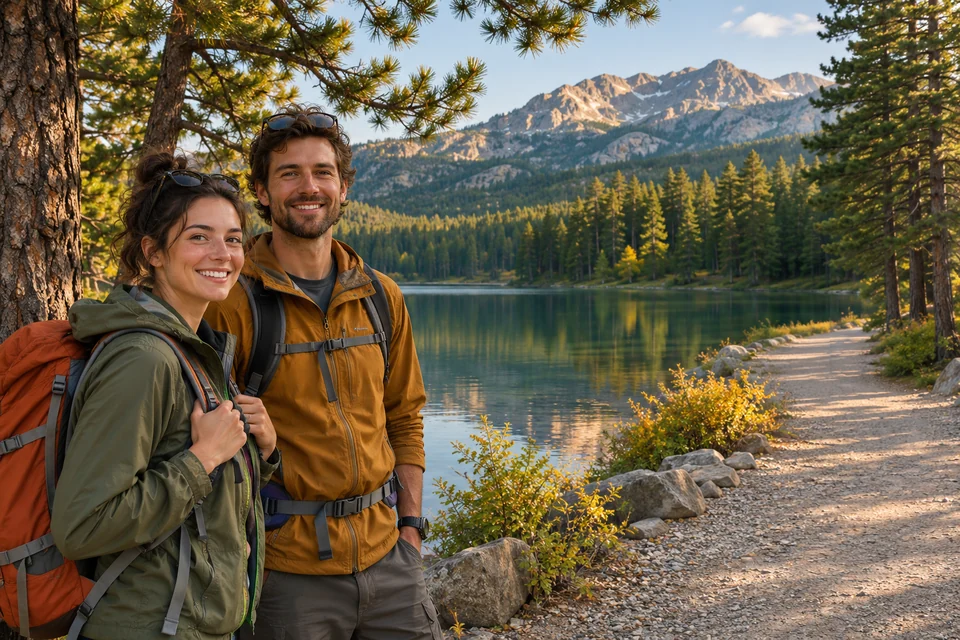
Group snapshots on trails or beaches often catch a bystander near the edge. To remove person from photo in multi-subject shots, erase one person per pass and inspect nearby faces immediately. Tight masks let you remove person from photo online cleanly and remove person from group frames without altering friends beside the selection.
What does remove person from photo mean?
Remove Person from Photo is a mask-based online AI editor that fills a brushed selection over an unwanted person while keeping every unmasked pixel intact. Unlike full-cutout tools that strip the whole backdrop, a remove person from photo online pass keeps your real location, light, and foreground subjects exact.
Mask-locked AI fill with zero background shift
During every remove person from photo edit, our compositor blends the AI fill strictly inside your mask and locks the prepared original outside it. Compared with manual desktop clone stamps taking ten minutes on textured paving, one brush stroke lets anyone remove person from photo online and inspect before-and-after seams right away.
10 free daily credits and clear V1 or V2 pricing
Every visitor gets 10 free daily credits resetting at midnight UTC to remove person from photo online free on Model V1 at 5 credits per edit with no sign-in and no watermark. Paid Model V2 costs 8 credits with Google sign-in and an active plan or credit pack. Uploading, brushing, and downloading PNGs cost 0 credits.
Clear specs, privacy, and honest boundaries
Upload one still JPG, PNG, or WebP up to 15 MiB, 12 megapixels, and 6,000 pixels per side; exports cap at 1,536 pixels as PNG. Metadata is stripped before online processing, and outputs remain stored for tab recovery. Never remove person from photo for legal evidence, and use manual retouching when hidden faces need exact reconstruction.
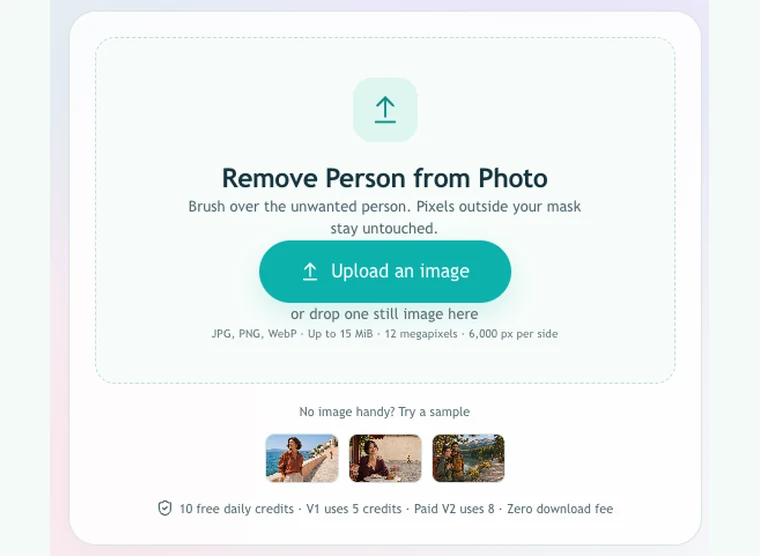
Follow three quick steps to remove person from photo online directly in your browser. Loading an image, brushing the remove person mask, and checking previews cost 0 credits before running AI.
1. Upload a still image or load a sample
Drop a JPG, PNG, or WebP up to 15 MiB, 12 megapixels, and 6,000 pixels per side into the dropzone, or click a sample thumbnail to test how to remove person from photo online. Starting with the original camera file keeps hair, shoes, and paving edges sharp before you remove person from photo.
2. Brush the person and shadow with the mask
Paint the Mark brush across the person from head to toe, including bags and cast shadows so no edge stays behind. Adjust brush size from 2 to 30, refine overlaps with Erase, or tap Undo. Then pick Model V1 (5 credits) or paid Model V2 (8 credits) to remove person from photo.
3. Compare the repair and save a PNG
Keep the tab open while AI reconstructs your brushed area inside a frame up to 1,536 pixels wide. Toggle Original and Result to verify paving seams after you remove person from photo online. Refine the mask if needed, or save the clean watermark-free PNG at 0 extra charge.
Real results when you remove person from photo
Each pair below shows a real Model V1 run at 1,536 × 1,024 pixels to remove person from photo online. Checking real outputs and failure boundaries helps plan every remove person from photo pass before spending credits.
Original
Result
Seaside walkway — remove person from photo — Model V1 (5 credits), 1,536 × 1,024 px. Brushing the distant person and shadow let us remove person from photo cleanly.
Original
Result
Courtyard café — remove person from photo — Model V1 (5 credits), 1,536 × 1,024 px. Brushing across plaster and cobbles helped remove person from photo cleanly.
Original
Result
Lakeside trail — remove person from photo — Model V1 (5 credits), 1,536 × 1,024 px. Masking only the distant hiker let us remove person from photo accurately.
Cover hair, shoes, bags, and cast shadows
Any shoe, strap, or shadow outside your mask remains visible after a remove person from photo edit. Paint a slight margin around the person against plain stone, grass, or water, and trim with Erase whenever a stroke touches a sleeve or railing. Clean masks make every remove person from photo online result believable.
Watch straight seams, signage, and blocked faces
AI infers brushed regions only from surrounding pixels, so straight joints, tiled floors, readable text, or a hidden face can distort during a remove person from photo request. When crowds block half the backdrop, choose a cleaner shot or a desktop retoucher rather than repeating a remove person from photo pass.
Refine small edges before running another edit
To remove person from photo when several bystanders appear, brush the clearest isolated person first and inspect the 1,536-pixel PNG at normal viewing size. If an orphaned reflection stays behind, switch back to Selection, expand the remove person mask over that patch, and rerun only the missed region.
Related editing tools for your shots
Need a transparent cutout, a fresh setting, or blurred depth instead of choosing to remove person from photo online? Try our sibling browser and AI tools below.
Yes, guests can remove person from photo online free using 10 free daily credits without signing in. Model V1 costs 5 credits per remove person from photo edit, covering two free edits daily plus watermark-free PNG downloads at 0 extra credits. Paid Model V2 costs 8 credits with Google sign-in.
Does the editor keep nearby people and textures unchanged?
Yes, our compositor applies AI fill strictly inside your painted mask and locks every pixel outside it during each remove person from photo run. Keep the brush off nearby people you want preserved, because any face or shoulder physically hidden behind the brushed person can only be estimated.
What input formats and PNG export sizes are supported?
Upload one still JPG, PNG, or WebP up to 15 MiB, 12 megapixels, and 6,000 pixels per side to remove person from photo online. The editor prepares a working image up to 1,536 pixels on the longest edge and saves a clean PNG with transparent areas filled white.
What happens when a person casts a shadow or reflection?
Unmasked shadows and reflections stay untouched because pixels outside your brushed area never change. Before running a remove person from photo pass on sunlit paving or glass, paint over both the person and their shadow, then toggle Original and Result to verify surrounding ground textures and edges.
How is private image data handled during online editing?
Choosing files and painting the brush mask happen locally in your browser. Submitting a remove person from photo online request sends the prepared image and mask with file metadata stripped, and generated outputs plus request records remain stored for recovery rather than deleted when closing the tab.
How can I remove someone from a photo without Photoshop?
Use this browser editor to remove person from photo online without installing Photoshop or learning clone layers. Upload a still file, brush the Mark tool across the unwanted person and shadow, run Model V1 for 5 free daily credits, inspect the repair seams, and download a watermark-free PNG.
Can I delete multiple passersby from one travel image?
Yes, painting multiple separate masks lets you remove person from photo in one pass, or clean one passerby per edit for closer inspection. Small isolated masks produce cleaner textures when you remove person from photo online, while dense crowds hiding most scenery suit a cleaner shot or desktop retouching.
Why does a repaired seam or hidden face sometimes look off?
AI reconstructs brushed pixels solely from visible neighbors, so straight wall seams, signage, repeating tiles, or a face hidden behind the brushed person can look uneven after a remove person from photo edit. Tightening your brush border or switching to paid Model V2 often improves complex edge transitions.
How do I recover a finished result if I stop waiting?
Keep the same file, brush mask, and model tier open in your browser tab, then click Check result / retry before starting another remove person from photo request. Because an accepted server job can finish after you stop waiting, checking recovery retrieves your PNG without spending extra credits.
Ready to remove person from photo online?
Brush out distracting passersby to remove person from photo cleanly, inspect before-and-after edges, and download a PNG with 10 free daily credits.